


Introduction: Why PC Migration Is a Big Task?
So, you just unboxed your new computer, didn’t you? Super hyped!
The excitement to get started with a new, fresh one. Only then—bam! You get hit with it. Hold on… How is everything supposed to be moved from the old PC to this one? And, yikes, in a safe way?
For many, moving to a new PC feels… well, like a total headache. Migrating to a new PC isn’t just a drag-and-drop game. Compare expert-tested antivirus tools to keep your new PC secure. It’s messy. Really messy. You’re not only transferring files, you’re kind of shifting your whole digital life. Apps. Licenses. Browser bookmarks. Saved passwords. Explore NordPass guide for secure password management during PC migration. Even those tiny little settings you don’t notice they’re gone. And that’s when frustration kicks in. Everything suddenly adds the risk of losing data, apps not working, or hours wasted reinstalling stuff… learn how Intego Antivirus protects against malware and ransomware during migration.
What looked like a quick switch feels more like a never-ending marathon.
So to make your life much easier, in this guide, we’ll talk about why migrating to a new PC is such a big deal, what can go wrong, and how you can make the whole thing… way easier just by using simple tools.
Introducing Laplink’s PCmover
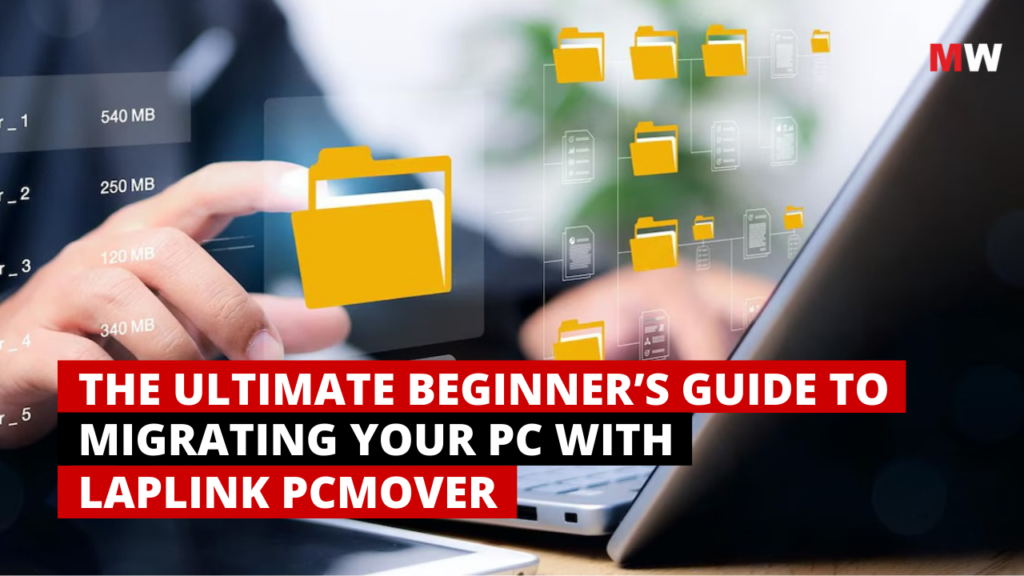
To sort out your digital mess of moving everything to a new PC, there’s a tool that’s got your back. Shortcuts, apps, files, settings all of it. So relax, no more panicking or pulling your hair out. The tool? It’s called Laplink PCmover.
Laplink has been around since 1983, over 40 years, and PCmover came a few years after that! Yeah, it’s not new, but it’s been quietly saving people from hours of frustration ever since. Read Laplink’s official blog on the latest PCmover upgrade.Basically, it’s a software that moves your apps, files, user profiles, and settings from your old PC to the new one. You don’t need tedious reinstalling, losing that one document you forgot to back up. Unlike traditional methods that we have, which require manual reinstallation and setup, PCmover automates the entire migration process. See Webroot Antivirus blog for lightweight protection during setup. This means your new PC can have the same “personality” as your old one, without the hassle.
Over the years, it has grown to handle all kinds of migrations of your simple home upgrades, big enterprise moves, or even tricky OS upgrades. Whether you’re a casual user just upgrading your laptop or a business managing thousands of machines, PCmover has a solution for you right away. Discover Project Management Tools blog for coordinating enterprise migrations. Easy, reliable, and… honestly, kind of a lifesaver.

How PCmover Makes PC Migration Easy
Laplink’s PCmover makes moving to your new computer seamless. No hunting for files. No reinstalling apps one by one. You just tell it what to move apps, settings, your user profiles, etc it takes care of the rest. Quietly, in the background. You can be picky and choose only what you need, or just let it grab everything. Files stay in order. Settings stay just how you like them. Read Avira Antivirus blog for privacy protection and VPN features post-migration.
And you? You get to skip hours of fiddling and worrying. That weird app preference you love? Safe. That spreadsheet, which was buried in one of your random folders? Safe too. It’s like having a little all-knowing helper who just… gets it.
Scenarios for implementation (Personal / Professional / Enterprise)
No two PC moves are the same. Your needs at home, at work, or in a small business all look different. Maybe you’re a student, upgrading a laptop crammed up with assignments and photos. Maybe a freelancer, juggling apps, client files, and deadlines. Explore our Social Media Automation blog for tools that keep brand presence consistent during transitions. Or maybe… You just want your new PC to feel exactly like your old one. Whatever the case, Laplink’s PCmover has got your back. Simple. Safe. Stress-free. Move your stuff without the headache.
You can look forward to using Laplink’s PCmover if you want to:
- Save Time: Don’t you worry; just forget the hours that reinstalling apps or digging through folders takes. Laplink does the hard work for you.
- Stress-Free Moves: Don’t lose the hype of a new PC; the hassle shouldn’t be a headache. Simply follow the steps. Click, transfer, done. Easy, right?
- Keep Your Files Safe: It’s important that you keep your documents, photos, and work stuff intact when there’s no risk of losing anything important, so you get no panic moments.
- Stay Organised: You will find all your apps and settings exactly where they belong. Your new PC feels like home instantly.
- Get Back to Work Fast: Once everything settles, you get less downtime and more doing. You’re already up and running before you even know it.
- Move Multiple PCs Easily: Got more than one machine? Freelancers, remote workers. PCmover can handle them all without extra stress.
- No More Downtime: If you are running a business, PCmover keeps things that your operations don’t stall and your team doesn’t have to stress over missing files or lost data.
By now, you surely must have gotten an idea of what Laplink’s PCmover is, how it works, and all the ways it can make your life easier. Sounds great, right? Now let’s dive into a practical walk-through, a step-by-step guide on using PCmover. We’ve gone through the theory; let’s see it in action in the upcoming sections.
Enterprise & Government Migration: Large-Scale Transfers Made Simple
When you’re or even thousands of PCs, “moving to a new computer” doesn’t mean just swapping one laptop. It’s a full-scale operation. Large agencies, enterprises, and government departments understand the complexity of large-scale migrations. See Sophos Antivirus blog for enterprise-grade endpoint protection and cloud management. Here’s how the PCmover Enterprise Edition steps in and changes the game.
- Automated migrations at scale.
Forget scripting every single move or building complex XML files. With PCmover Enterprise, setup happens once, then the migration flows. Use network, USB cable or even single-file “image” transfers. The heavy lifting is done for you.
- Support for real-world complexity.
Be it older hardware, mixed OS versions, multiple domains, Microsoft Entra ID environments, remote offices, home-based staff or devices dispersed globally. PCmover Enterprise handles them all.
- Zero-touch experience.
For big IT teams, this is gold: Discover Project Management Tools blog for workflow planning and resource allocation. Schedule the move, wrap it into existing tools like SCCM, PDQ, or Altiris, and hit deploy. Users come in one morning to a working machine. Learn how PCmover integrates with Microsoft SCCM for automated deployments. No calls, no panic, just business as usual.
- Cost, time & hassle saved.
As we know, downtime is expensive. Every minute staff can’t work, or when IT is fixing, it subtracts from value. PCmover Enterprise reduces that gap. Fewer helpdesk tickets. Faster refresh cycles. Less stress. Laplink’s official best practice for enterprise migrations.

Step-by-Step Guide: Using Laplink’s PCmover
So, let’s put the theory aside; let us see how to actually use it. Honestly, the setup isn’t complicated at all; it’s kind of like packing up a room and unpacking it somewhere else. Just a few clicks, some waiting, and your old PC’s life shows up on the new one. Let’s keep this simple. Step by step. No tech overwhelm.
-
- Download & Install PCmover on Both PCs: Head to Laplink’s official site and download it on both your old and new PCs. Quick and easy. Laplink’s official installation guide for PCmover.
- Get your PCs ready
- Check that both of your PCs have enough free disk space.
- Your new PC should have the same or a newer version of Windows. Though it isn’t recommended to move from a newer version of Windows to an older one, it can be messy.
- Turn off your screensavers, sleep modes, and any auto-start programs, and firewalls you have on your PC. Learn how private Internet Access VPN ensures secure browsing while configuring systems.
- Plug-in PCs; they shouldn’t run on battery during the transfer.
- Connect Your PCs: Connect your PCs via a network connection, a Laplink high-speed transfer cable or even an external drive. PCmover guides you on which method works best. Ultimately, choose what works best for you.
- Select What to Move: Decide what matters apps, files, settings, or all of it. You can be picky or just go for everything.
- Start the Transfer: Click “Transfer” and let PCmover handle the rest. Depending on the data size, it may take some time; meanwhile, grab yourself a coffee!
- Check Your New PC & Finish: Once it’s done, review your new PC. Your apps, files, and settings should all be where you expect them. If you’d like to make any small tweaks, you’ll see PCmover has an easy Undo feature that lets you roll back the transfer if you ever need to. You’re good to go.
Quick Note on License & Setup
Alright, a tiny but important step here. When you install PCmover onto both PCs, it’s going to nudge you for a license key on the new PC. Yes, that long code you would probably get in your email or printed inside the box. Don’t ignore it; that number is what actually unlocks the whole process.
Once that’s in, PCmover takes the wheel. It’ll ask you how you want to move stuff, Wi-Fi, Ethernet, etc. Just click through, follow the prompts, and you’re all set.
So, it’s that simple. No headaches, no missing files, no stress, just a smooth transition to your brand new PC. But wait a sec, before we dive any deeper, let’s slow down for something super handy quick Pre- and Post-Migration Checklist. Think of it like your safety net. It would help you keep things tight, make the whole move cleaner, and save you from those little “oh no” surprises late.

Pre- and Post-Transfer Checklist for Laplink PCmover
Shifting to a new PC with PCmover is smooth, sure. But a little prep? That makes it even better. Think of this checklist as your cheat sheet for your transfer can quickly tick off things before you start and right after you’re done. It would help you keep the process clean, avoid slip-ups, and make sure your new PC is truly ready to roll.
Before You Start: Pre-Installation Checklist
Before you start moving your digital life, a little preparation is required right before you install Laplink’s PCmover. Let us look into what to check on both our old and new PCs:
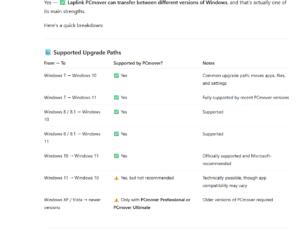
- System Requirements: Firstly, you will have to make sure both PCs can handle PCmover. CPU and RAM should meet what your Windows version needs. You’ll also need at least 200 MB free on the hard drive. Works with all versions of Windows, including XP, Vista, 7, 8, 8.1, 10 and 11.
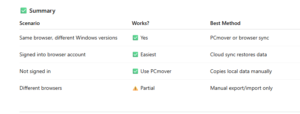
- OS Version: What about your new PC? Well, it should be the same or a newer Windows version than the old one. Try not to have backward trips here.
- Windows Updates: Don’t skip this. Install all important updates on the new PC. On the latest version of Windows, just search “Windows Update” and check for updates. On 8, 7, or Vista, go through Control Panel → System and Security → Windows Update. Keeps things smooth.
- User Accounts: Check who’s logged in. For example, the Home edition of PCmover only moves the account you’re currently logged into on the old PC to the account logged into on the new PC. If someone else is logged in, you should log them off.
- Cables: Now, wait! Hold off on plugging in your Laplink USB or Ethernet cable. PCmover will tell you when it’s go-time.
- License Reminder: One license = one old PC to one new PC. Need more transfers or extra users? You’ll need extra licenses.
*These points were taken from help.laplink.com
*These points were taken from help.laplink.com
Before You Transfer: Pre-Transfer Checklist
Now, before you hit “transfer,” a few last checks can save you big headaches. Think of this as a final sweep to make sure everything’s ready to go.
- PCmover Installed: Make sure it’s on both your old and new PCs. You can’t move anything if it’s not there!
- Admin Permissions: Some versions of Windows need PCmover to run with admin rights to get the job done. Don’t skip this step.
- Hard Drive Space: Your new PC should have at least as much space as the old one.
- Windows & Browser Versions: Keep your new PC at the same or a newer Windows version.
- Check Applications: PCmover won’t move apps already on the new PC. And ditch any trial versions right away that you find on your new PC for which you already have the full version on your old PC; that’s important.
- Clean Up: Run a disk check, antivirus, and antispyware scans on both PCs. A little prep saves a lot of headaches.Explore Cybernews’ list of top antivirus solutions for 2025.
- Power Settings: Screensavers, hibernation, and all power-saving options. PCs need to stay awake. Your PCs or Laptops? Plug it in.
- Scheduled Tasks: Pause or disable automatic tasks. Backups, scans, and updates only get in the way.
- Exit Programs: Close everything running, be it virus scanners, firewall tools, desktop search utilities, etc. Some programs just don’t play nice during transfer.
After You Have Transferred: Post-Transfer Checklist
The transfer’s done! Let us do a few quick checks afterwards that can save you from surprises. Think of this as a “make sure everything survived” list. Here’s a smart little to-do list once your transfer is done:
- Verify Files: Open your important applications, docs, photos, and folders. Make sure everything has made it over safely.
- Test Apps: Open a few of your key applications. Yep, make sure they work.
- Re-enable Antivirus: Turn your antivirus, firewall, and scheduled tasks back on. You can’t leave your new PC unguarded, right?
- Tidy Up: Uninstall anything you don’t need, like leftover trial software. Less clutter, less headache.
- Update Drivers & Software: Hit Windows Update and check your apps for patches. It will keep everything current.
- Backup: Once you’re happy everything’s in place, do a quick backup. A fresh start deserves a fresh safety net.
Alright, once you have checked everything, it’s time to take a quick look at the common mistakes people often make during a PC transfer so you don’t end up repeating them.
Common Mistakes to Avoid During Transfer
When it comes to PC transfers, a few slip-ups can turn a smooth move into a headache. Keep these key points in mind to make your transfer smooth and hassle-free:
- Skipping pre-installation/ checks
- Transferring by using the wrong user account
- Not backing up important files. See GadgetReview’s ranking of antivirus tools to avoid and trusted picks.
- Leaving power-saving settings on
- Leaving programs running during transfer
- Ignoring updates on the new PC
- Rushing the process
We’ve covered how PCmover works, what to watch out for, and how to avoid common mistakes. Let us look into some challenges faced by PCmover and how it covers them up.
Challenges & How PCmover Covers Them
You must have seen so far that switching PCs isn’t always seamless. Even after best efforts, a few bumps always pop up. Let’s look into the challenges we often face and how PCmover eases them.
- Lost or Corrupted Files –When transferring without PCmover, files vanish mid-transfer or get corrupted. Super annoying. PCmover takes the stress out of it. It moves everything carefully, keeping your data safe. Explore Intego blog for advanced threat detection to keep files safe.
- App Compatibility Issues – Sometimes, older programs just don’t vibe with newer PCs. And if an app isn’t built for the latest Windows, it might not work even after the transfer. But here’s the win: PCmover saves you time by moving everything else safely, so you only need to reinstall or update what’s truly outdated. Stress-free, just like that.
- Time-Consuming Setup– Manual moves? You don’t need to. PCmover automates the heavy lifting. A few clicks, and it transfers everything in the background. You? Literally free to do anything else.
- Multi-Device Headaches – Got more than one PC to migrate? Freelancers and small businesses know the pain. PCmover handles all your multiple devices like a champ. Saves time. Saves energy. Saves headaches.
- Downtime for Businesses- Every hour a PC is down; it costs cash. No joke. PCmover speeds up transfers, automatically moving user profiles, apps, and settings quickly. Operations keep rolling. Employees stay happy. Your work doesn’t stop.
In short, Laplink’s PCmover doesn’t just move files; it handles all the extra tag-along problems that usually come with switching PCs. Less stress, less wasted time, and no surprises.
Conclusion
Finally, moving to a new PC doesn’t sound like a nightmare, right? It doesn’t have to be. It might feel stressful, messy, and time-consuming sometimes, but with Laplink’s PCmover, it isn’t.”With Laplink PCmover, your PC migration is smooth, safe, and stress-free.” Personal setups, business machines—it keeps your files safe. Apps working. Settings exactly where you want them. No lost docs. No wasted hours. Just a smooth, stress-free move.
Whether you are a freelancer with multiple devices, a student upgrading an old or a business trying to dodge downtime, Laplink’s PCmover has got you covered. It makes the whole process simple, and easy. With a bit of preparation, a and an easy-to-follow process, you are all set to move your old PC, full of your vibes, to a new one without any hassle.
So go ahead, unbox your new computer with all that hype and excitement. Take a deep breath, sit back, and let Laplink’s PCmover handle the messy stuff. Explore PCmover Home for personal migrations.
FAQ (Frequently Asked Questions)
- What’s Laplink’s PCmover?
It’s basically your digital moving helper. Move your files, apps, and settings from your old PC to the new one. Fast. Safe. No drama.
- Do I need tech skills?
No, not at all. Just follow the simple step-by-step interface. PCmover does the heavy lifting.
- Can I move more than one PC?
Yep! Got multiple machines? Freelancers, small businesses handle them all. Make sure to have one license for each pair of PCs. - Will my files and apps stay safe?
Yes! Totally. Your docs, photos, videos and apps come along exactly as they were. No lost files. No broken programs.